The todo app that gets things done

Add what needs doing.
Slaily makes it happen.

A kanban board with a built-in AI assistant that assigns tasks, does research, sets reminders, and keeps your project moving—so you can focus on the work that matters.

Free to start • No credit card
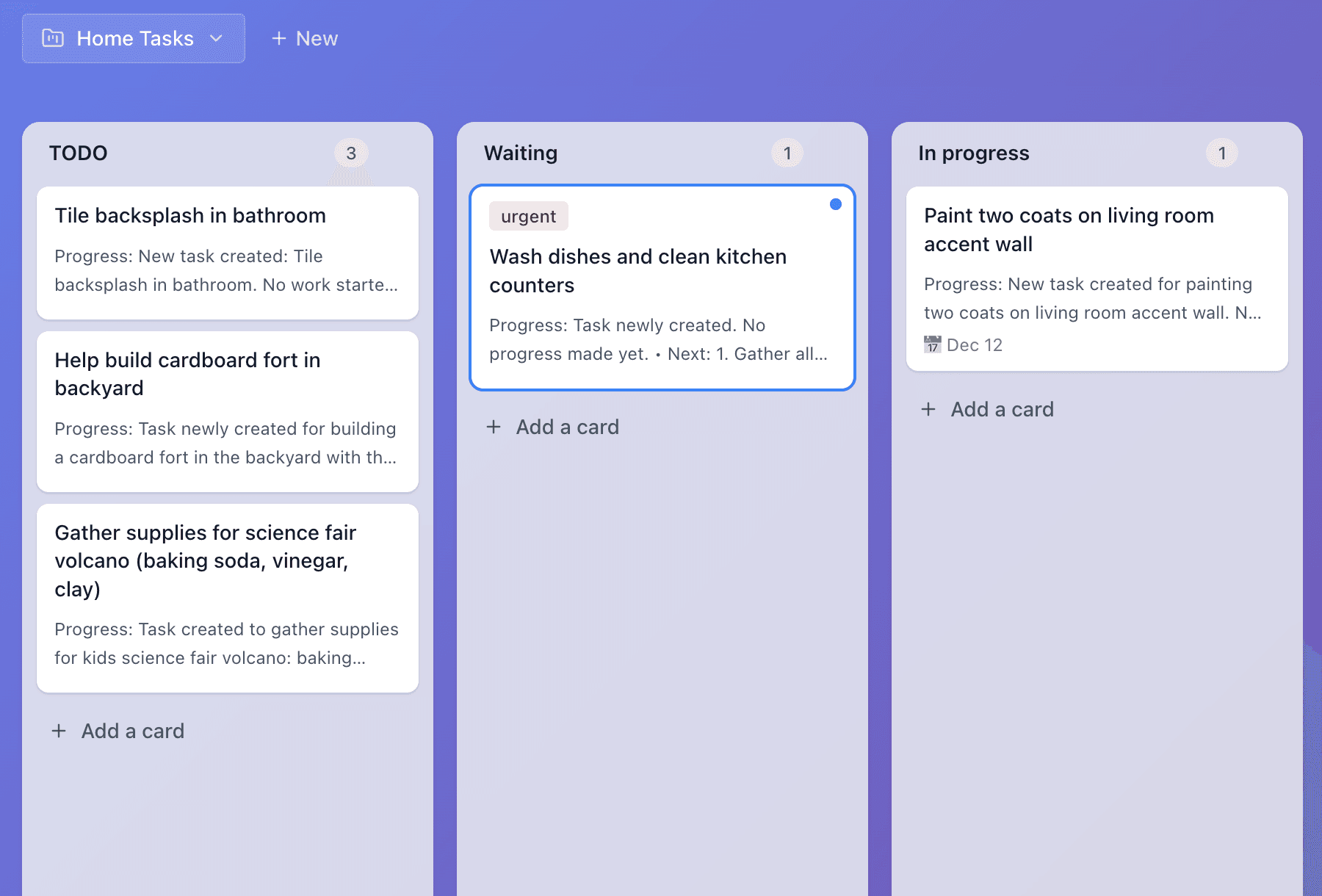
Slaily kanban board

AI does the busywork·assignment, research, follow-ups

Nothing slips through·scans every 30 min

Works from WhatsApp·manage on the go

See how it works

A familiar kanban workflow—with an AI layer that handles the project management overhead.

Just add what needs to be done

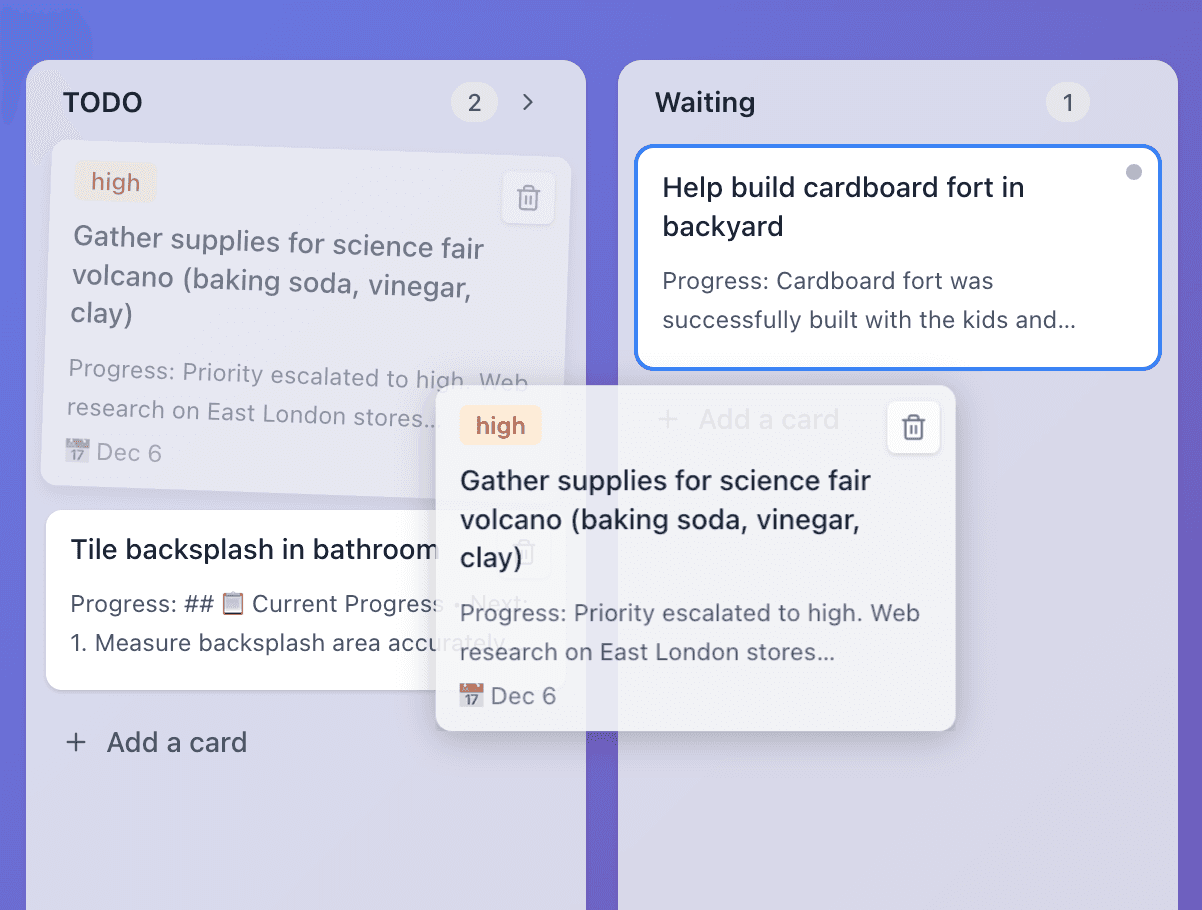
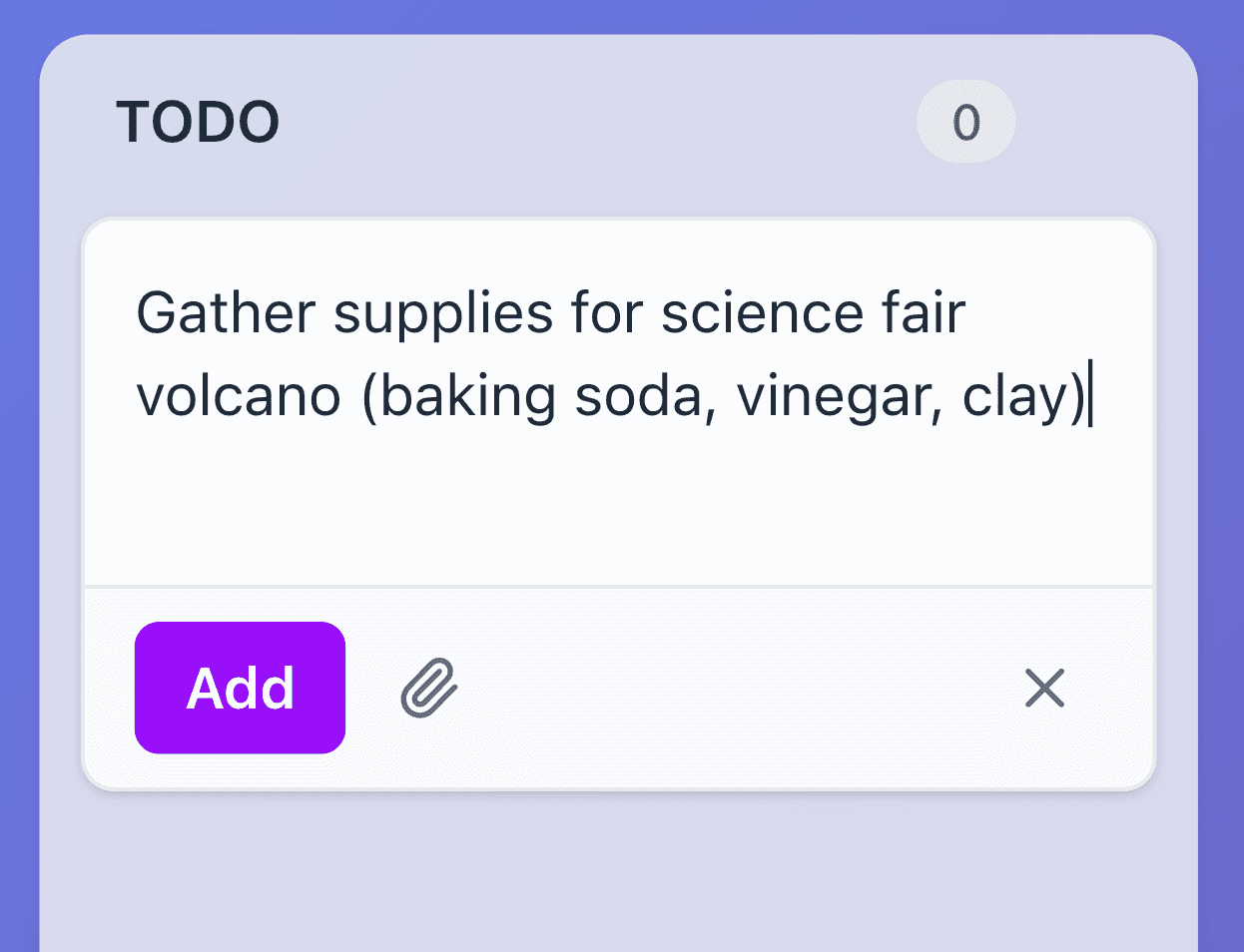
Add your tasks

Drop tasks into your board. Priorities, due dates, descriptions—whatever you need. Slaily takes it from there.

Step 01 screenshot
AI-powered task assignment

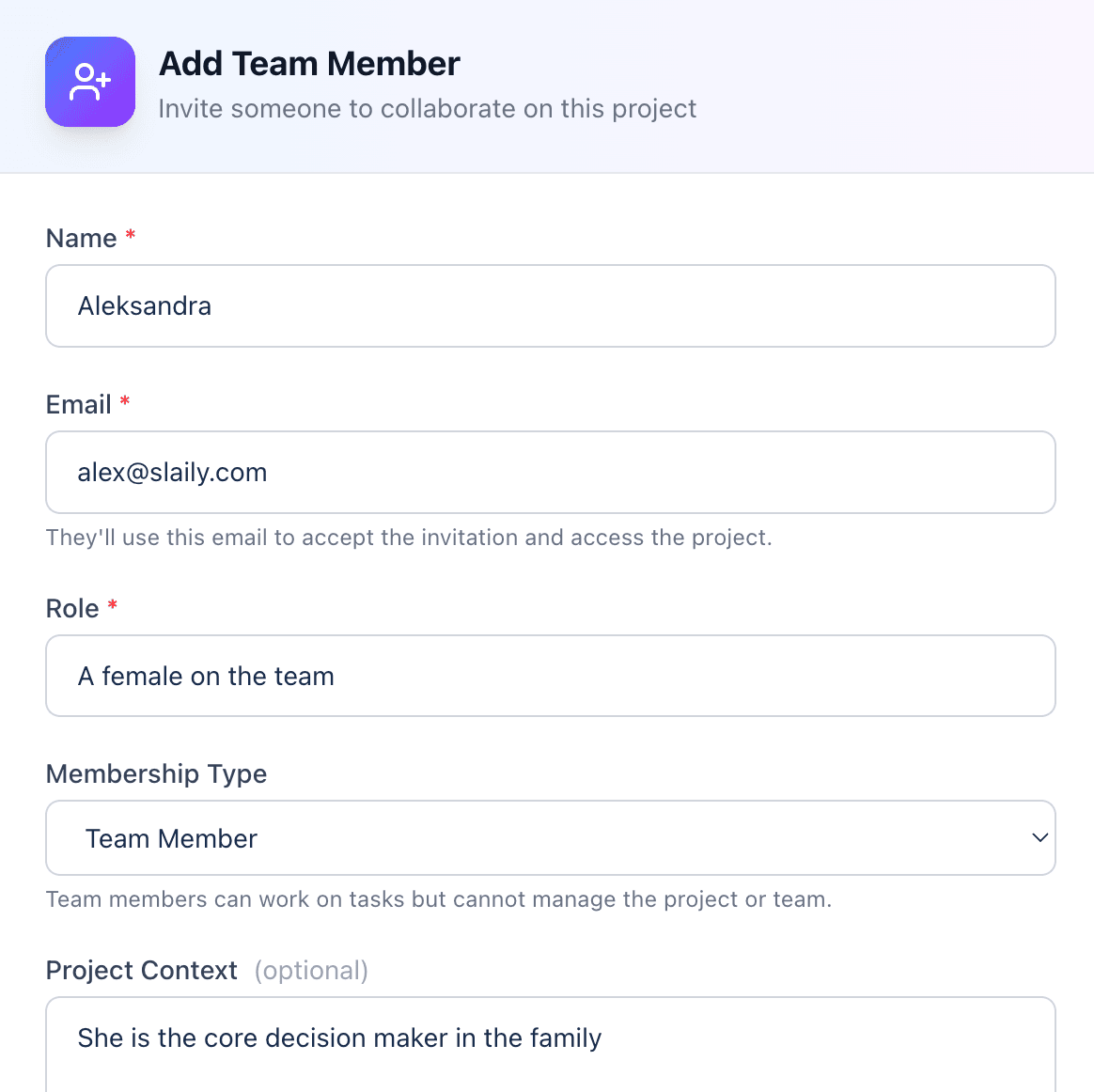
Define your team

Add team members with their roles and skills. Slaily uses this to intelligently assign the right tasks to the right people.

Step 02 screenshot
AI chat built into every task

Chat with Slaily in comments

Task comments are where you talk to Slaily like any team member. Clarify requirements, ask for research, update progress—it's your ChatGPT for getting things done.

Step 03 screenshot
Background automation

Watch Slaily work

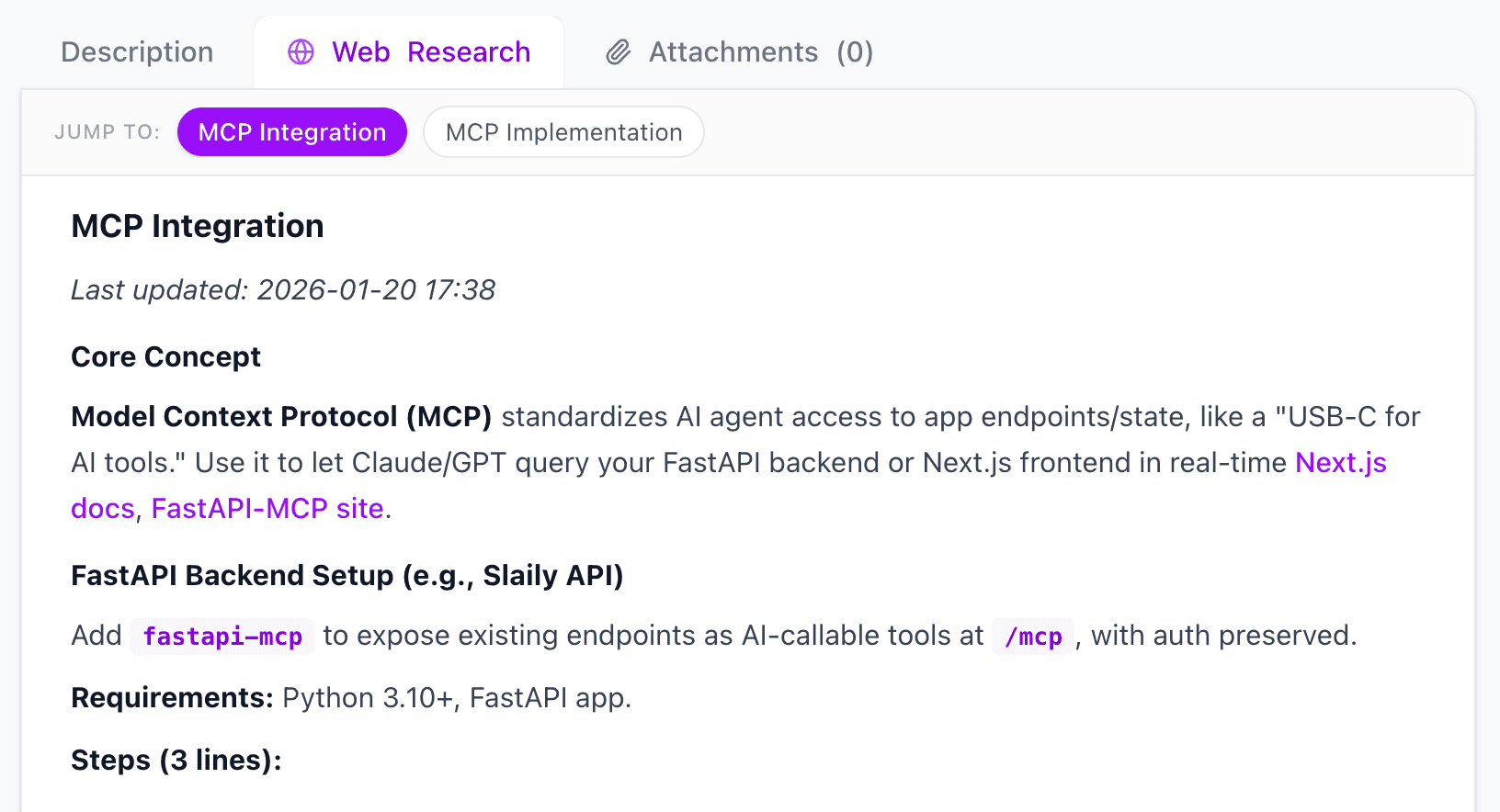
Slaily researches the web, updates task descriptions as living documents, tracks progress, and suggests next steps—automatically.

Step 04 screenshot
Mobile-first updates

Stay in sync via WhatsApp

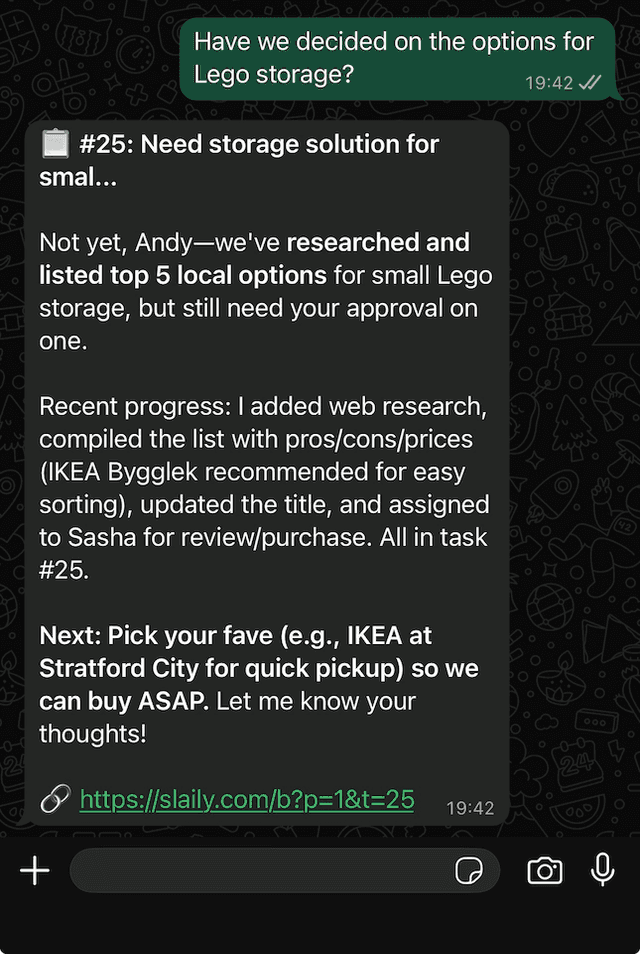
Receive updates, reply with instructions, ask questions—all from WhatsApp. No app switching needed.

Step 05 screenshot
Proactive reminders

Never miss a deadline

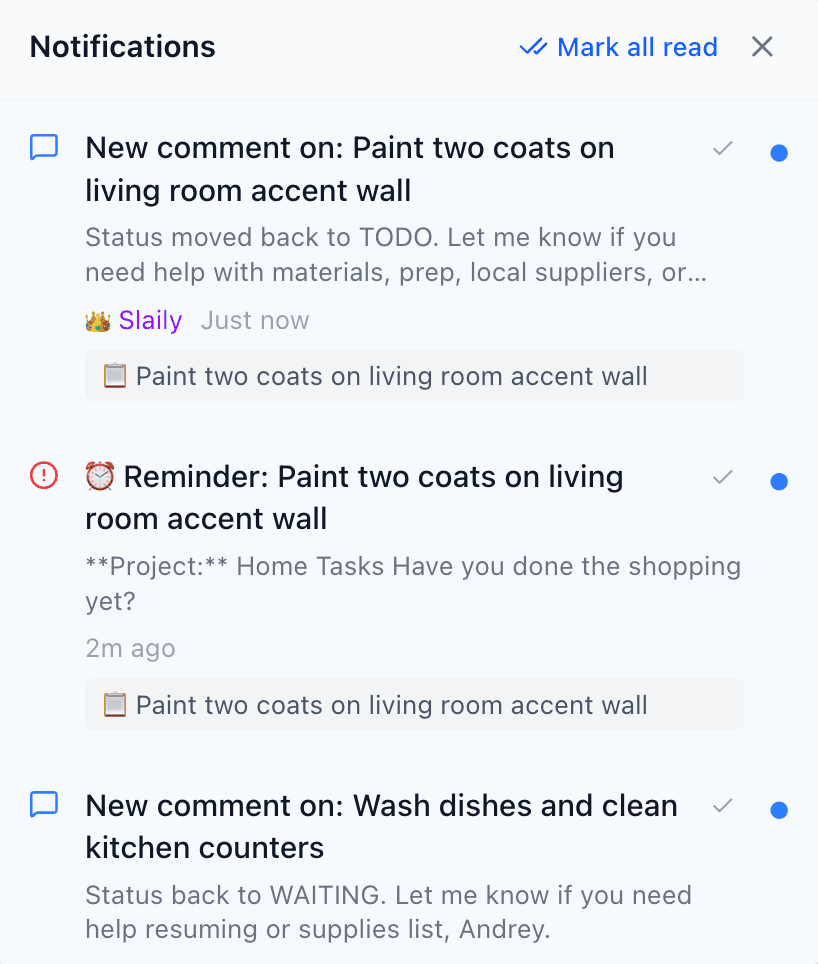
Slaily scans your board, flags stuck tasks, approaching deadlines, and even blocks focus time on your calendar.

Step 06 screenshot

What the AI handles for you

You stay focused on the work. Slaily handles the project management overhead.

Smart assignment

Add team members with their skills. New tasks automatically get assigned to the right person.

Background research

Ask Slaily to look something up. It searches, summarizes, and adds notes directly to the task.

Proactive reminders

Set reminders naturally. Slaily also notices stuck tasks and nudges the right people.

Calendar sync

Tasks that need focused time get blocked on your Google Calendar automatically.

WhatsApp on the go

Reply to notifications with updates, questions, or instructions—no app needed.

File handling

Attach documents and let Slaily help organize, parse, and reference them.

Frequently asked questions

Quick answers to get you up and running with Slaily's core features.

Calendar sync happens in two parts: enabling the connection and letting Slaily manage your time.

  1. Enable calendar access: Go to Account Settings (click your avatar in the top-right). You'll see a Calendar Sync toggle. If it shows “Not connected”, sign out and sign back in—Google will ask for calendar permissions.
  2. Toggle it on: Once connected, flip the switch to enable sync. When it's on, Slaily can create calendar events.
  3. Let Slaily handle the rest: When you create a task with a specific time (“meeting at 3pm tomorrow”) or when the AI determines focused work time is needed, it automatically creates a calendar event. You don't need to do anything—Slaily parses context from task descriptions and comments to decide when time blocking makes sense.

Pro tip: Slaily uses calendar sparingly—only when there's a concrete time to block. It won't clutter your calendar with every task.

WhatsApp lets you receive notifications and chat with Slaily when you're away from the app. Here's how to set it up:

  1. Add your phone number: Go to Account Settings and enter your WhatsApp number in international format (e.g., +1234567890). Click Save.
  2. Enable WhatsApp notifications: Open Notification Settings (bell icon → settings) and check the WhatsApp toggle.
  3. Test the connection: Click the Test button in Notification Settings. You'll receive a test message from Slaily on WhatsApp.
  4. Reply to chat: When Slaily sends you a task update or reminder, just reply directly to the WhatsApp message. Slaily understands your replies and can update tasks, answer questions, or take actions based on what you say.

Pro tip: Set quiet hours in Notification Settings so Slaily doesn't ping you during sleep or focus time.

Team members are people (or roles) that Slaily can assign tasks to. Here's how to add them:

  1. Open Team Management: In your project board, click the Team button (users icon) in the header to open the Team Management dialog.
  2. Add a new member: Click Add Team Member. Enter their name, email, and role title (e.g., “Frontend Developer”, “Designer”).
  3. Describe their context: This is the magic part! In the Project Context field, describe their skills, availability, and focus areas. For example: “Senior React dev, expert in performance optimization, available Mon-Fri, prefers async work.” Slaily uses this to make smart assignment decisions.
  4. Choose membership type: Pick Project Admin (can manage team), Team Member (regular access), or External Worker (assigned to specific tasks only).
  5. Invite them: After adding, you can send an email invite or copy an invite link. Once they accept, their Slaily account links to their team membership.

Pro tip: The more context you give about each team member, the smarter Slaily becomes at matching tasks to the right people.

Stop managing tasks. Start getting them done.

Add what needs doing. Slaily handles the rest.